Guide · 6 min read
Updated October 2026 · Revision 1
Written by Mariano Carpentier
How to Turn a Photo Sequence Into a Timelapse Video
A practical walkthrough for turning an existing photo sequence into a downloadable MP4 timelapse video.
In this guide, I’ll show you how to turn an existing sequence of photos into an MP4 timelapse you can download and use as you please. You can also share it on the Online Timelapse platform.
For this example, I captured the photos with a Raspberry Pi camera and a small script running on a Raspberry Pi. Capturing a sequence like this belongs in another guide. If you’d like us to cover it, leave a comment below. This guide begins once you already have the photos.
What this guide covers
✅ Turning a photo sequence you already have into a downloadable MP4 timelapse.
✅ Choosing the settings that shape its pace, format, soundtrack, transitions, and watermark.
✅ Sharing the finished timelapse on Online Timelapse, if you choose.
It does not cover:
❌ Using a GoPro, Insta360, phone, or another camera’s built-in timelapse-video mode.
❌ Setting up interval shooting on a DSLR or mirrorless camera.
❌ Writing the Raspberry Pi script that captured this example.
❌ Choosing camera exposure, focus, or capture intervals.
❌ Editing a timelapse manually in Premiere Pro, DaVinci Resolve, or another video editor.
What you need
You need a sequence of photos from the same scene. Online Timelapse can order the images by upload order, filename, or EXIF capture time, or you can arrange them manually, so they play in the order you want them to appear.
You can try this with 10 photos or with 1,000. Ten frames are enough to understand the workflow, but more frames usually give you a smoother result and more control over the final pace.
The photos do not need to come from a particular camera. They can be from a Raspberry Pi, DSLR, mirrorless camera, phone, action camera, trail camera, or anything else that produces image files.
Step 1: Check the photo sequence
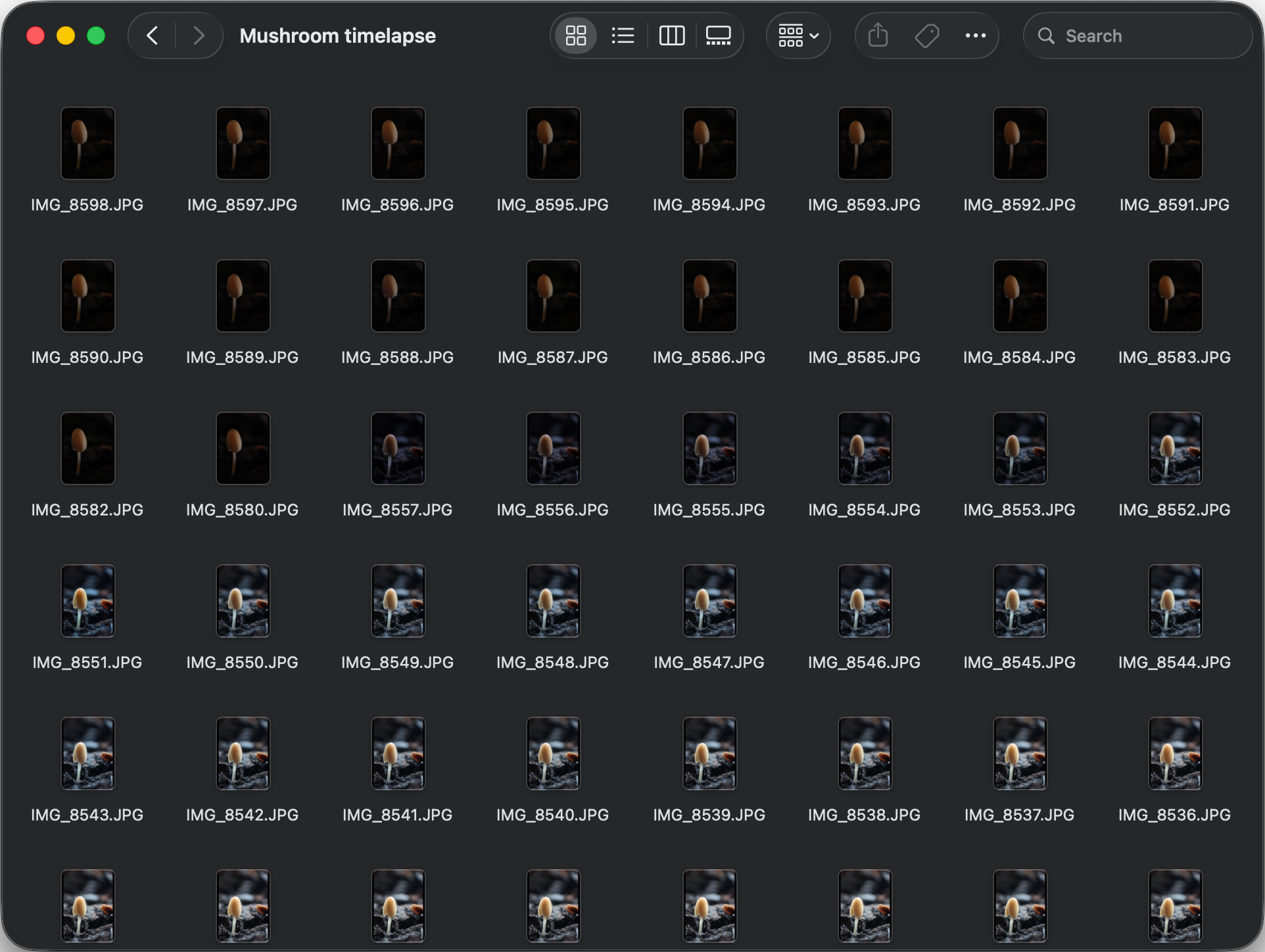
Before uploading anything, put the images in the order you want them to play. For most timelapses that means earliest to latest: dawn to daylight, a small mushroom to a fully grown one, or a building site from beginning to completion.
One misplaced frame can make a timelapse jump backwards, so it is worth checking the first, middle, and last image. You do not need to sort every photo before uploading, though. Online Timelapse can sort the sequence by upload order, filename, or EXIF capture time, and lets you fine-tune the order manually.
Step 2: Upload the photos to Online Timelapse
Open the creator and add the photos from the sequence. This is where separate image files become one timelapse project.
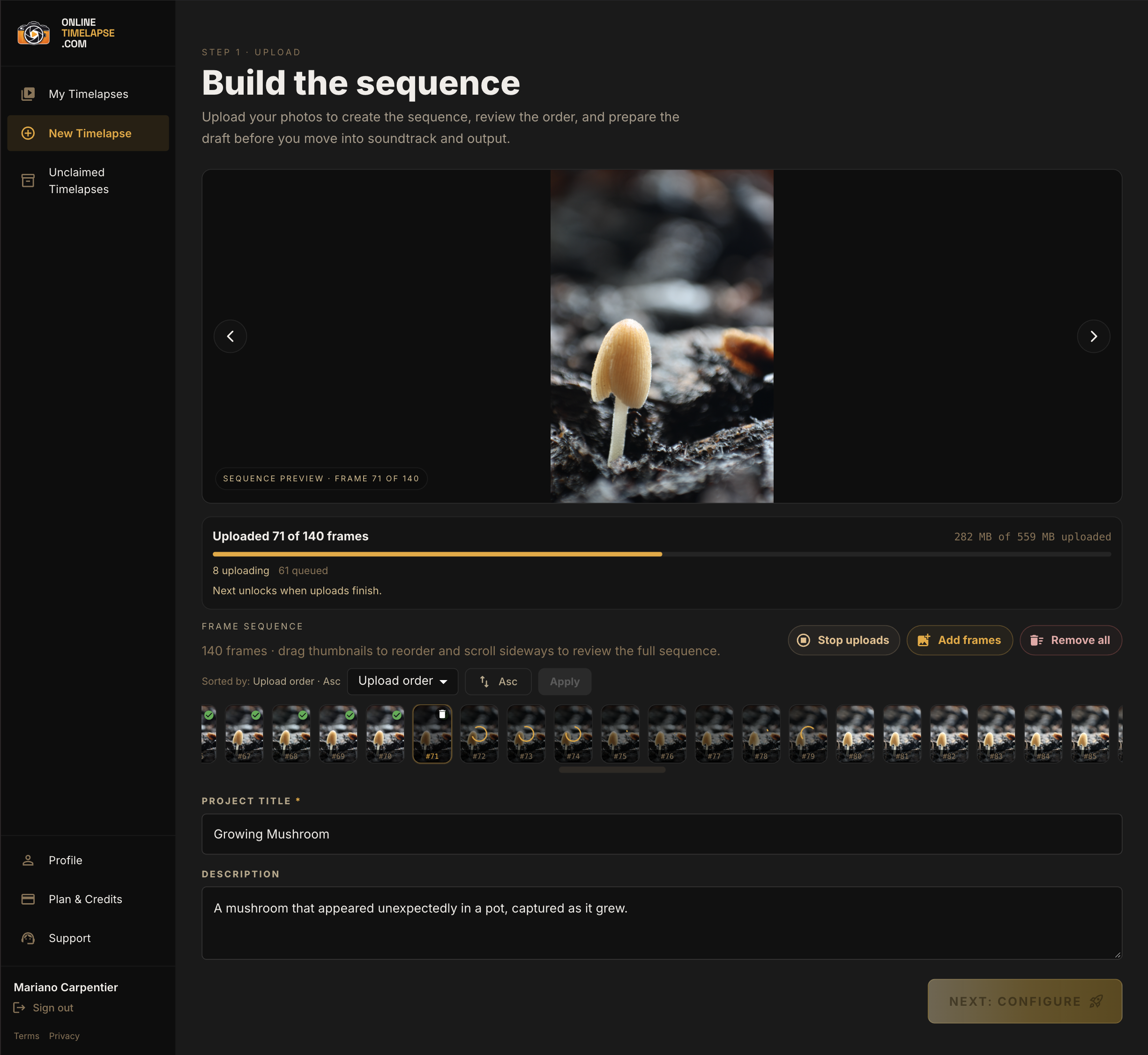
With Online Timelapse, you can choose the final video length independently of how many photos you upload. Later, alongside the video resolution, you will choose the duration that gives your timelapse the right pace.
Step 3: Choose a soundtrack, or continue without one
You can choose a track from the soundtrack library, upload your own audio, or continue without music.
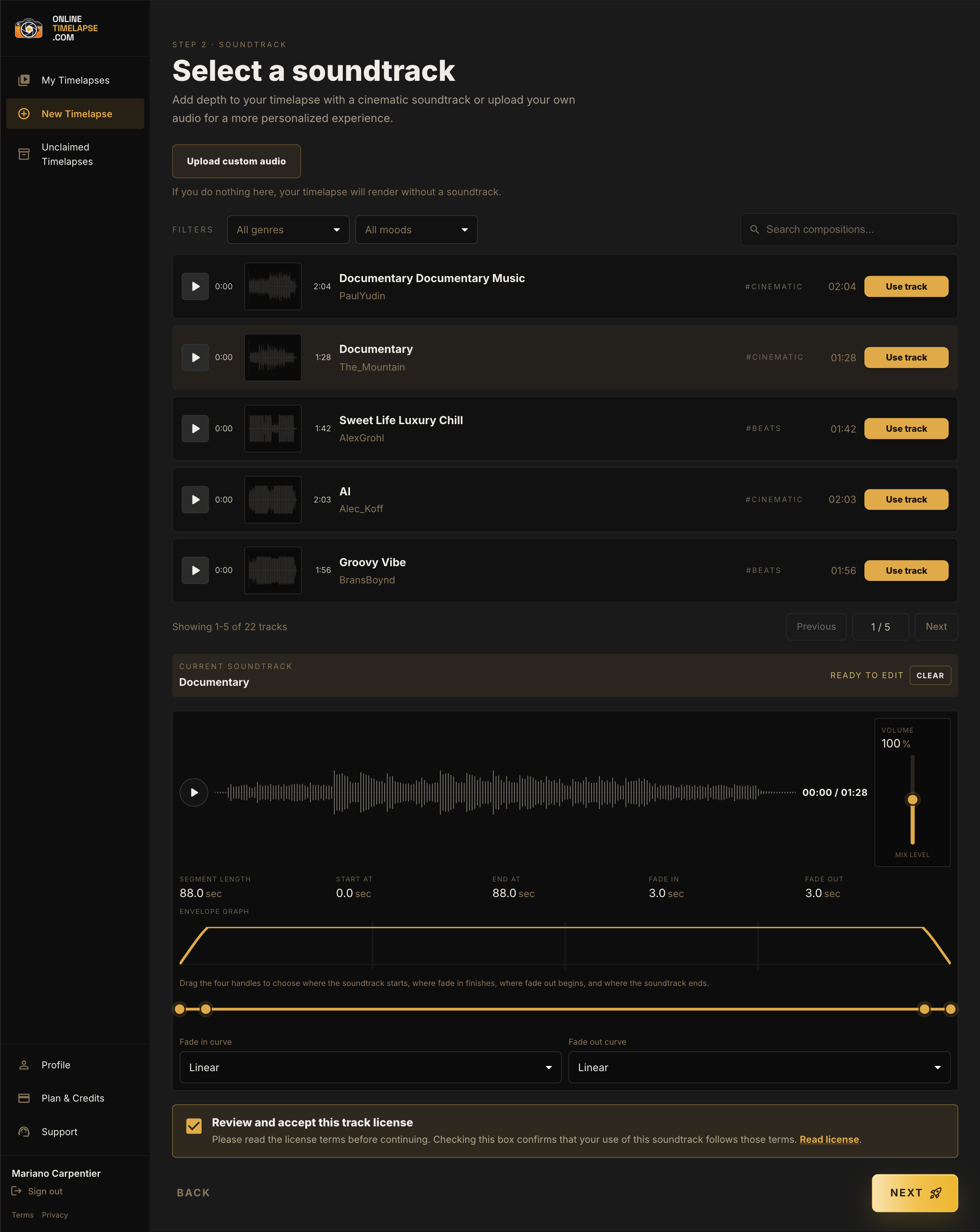
If you select a library track or upload your own audio, you are responsible for accepting and following its terms of use. Our shortlisted tracks come from Pixabay and are selected from music available under the Pixabay Content License. You can check the licence terms for each track before using it.
Step 4: Set the duration and output format
This is where you decide how the sequence becomes a video. Choose an automatic length, an exact duration, or a duration that matches the soundtrack. Then choose the output size and orientation that fits where you plan to share it.
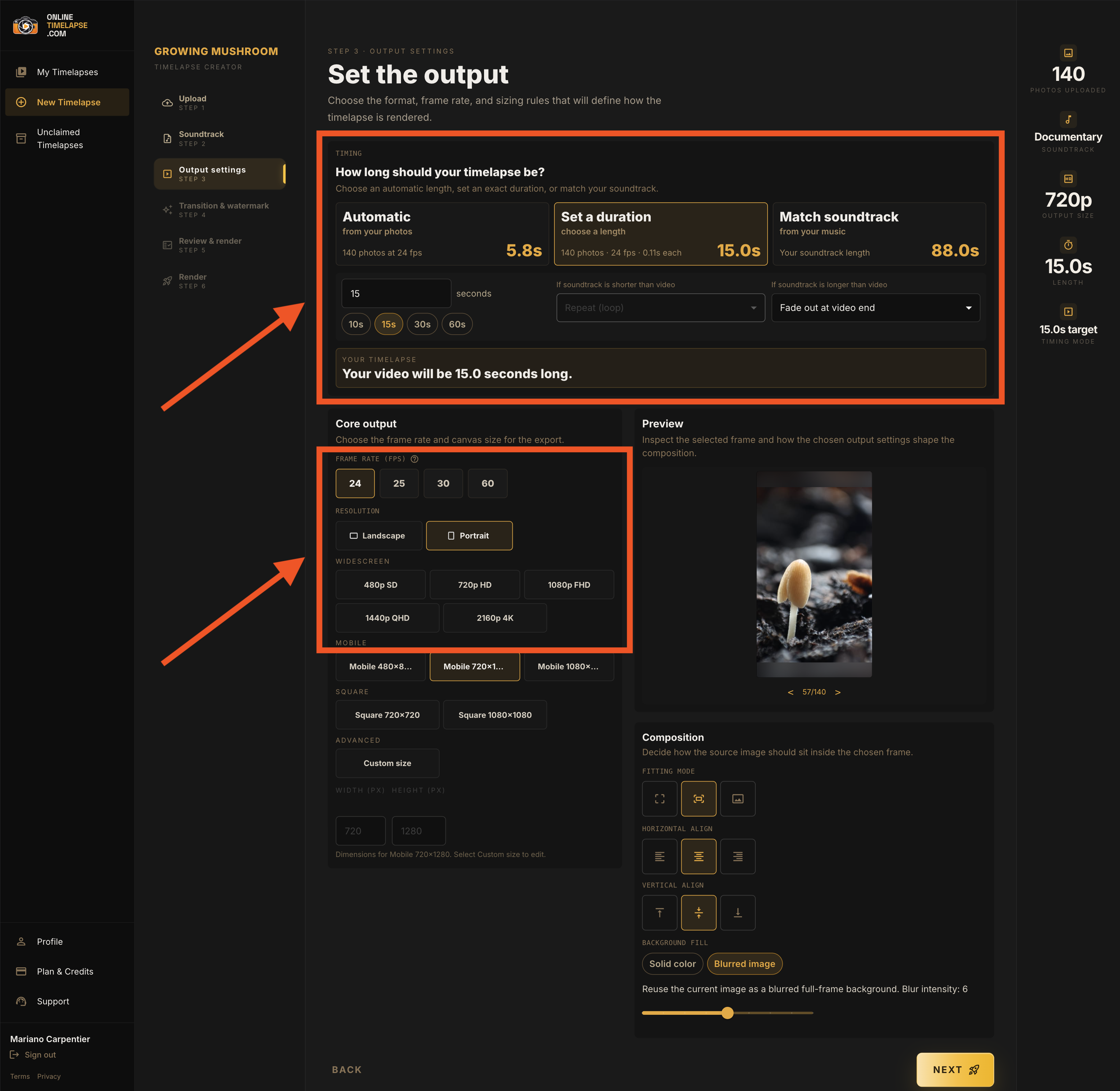
There is plenty more to shape here, so feel free to experiment with automatic, exact, or soundtrack-matched timing, frame rate, resolution and orientation, and how your photos fit within the final frame.
Step 5: Choose transitions and watermark settings
Set the transition between photos and decide whether the finished timelapse needs a watermark. You can keep the standard cut, choose a transition style, or add a watermark before rendering.
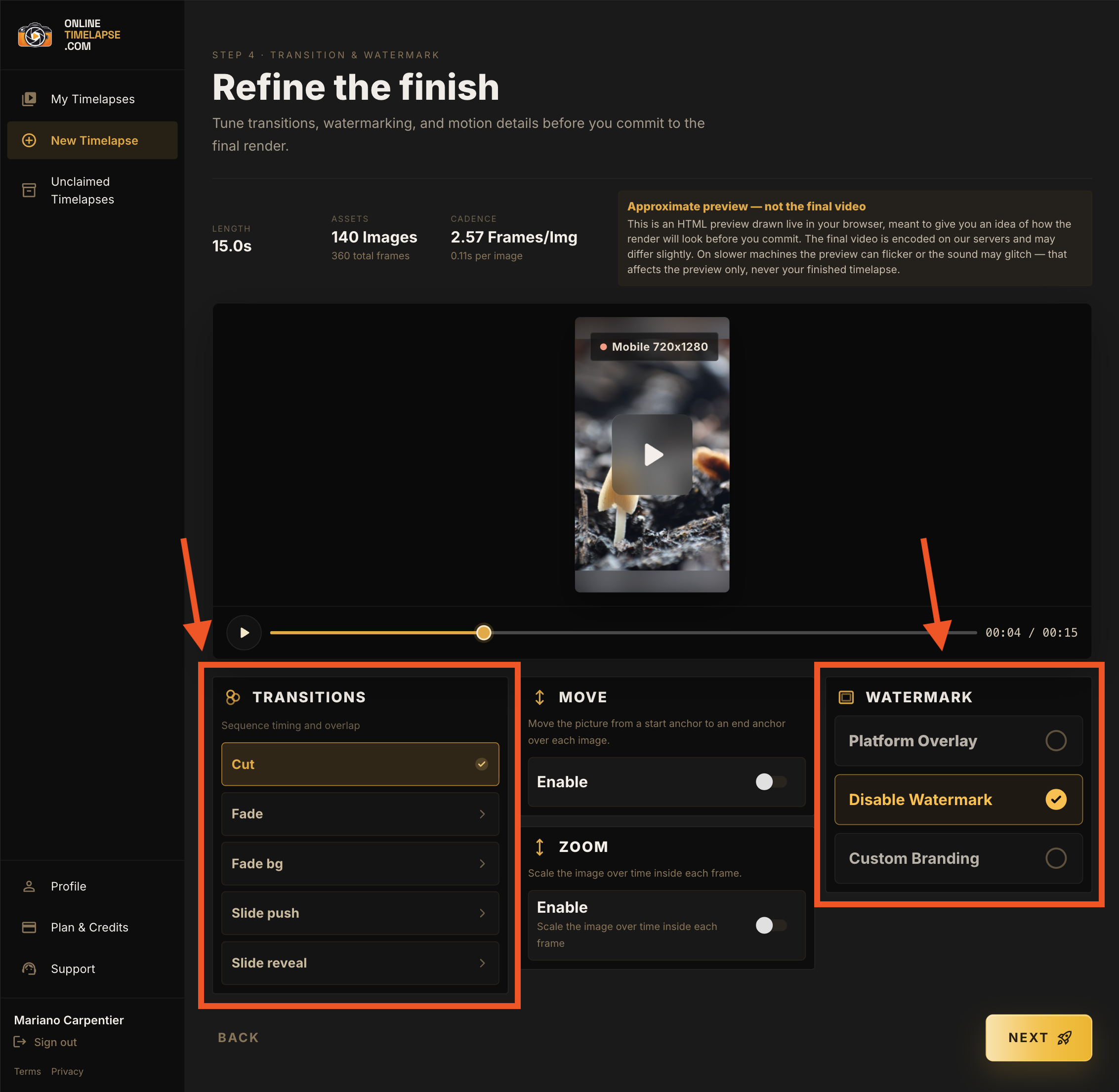
You can also add movement and zoom effects. Those options are usually better suited to a photo-montage video, rather than a timelapse where the change between images is the focus.
Step 6: Review, render, and download the MP4
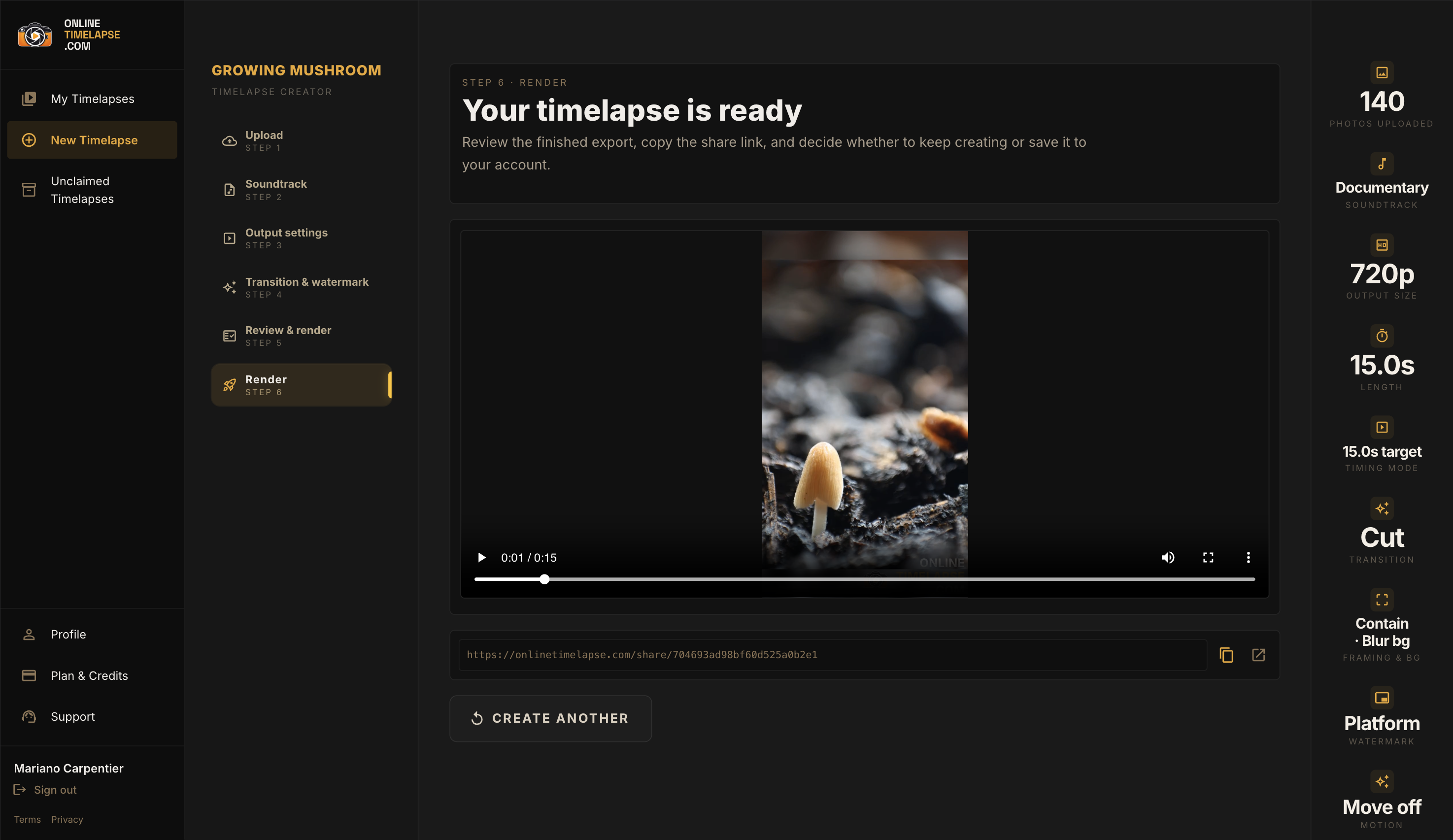
Review your choices, start the render, and wait for the finished MP4. Once it is ready, download it to keep a local copy or use the share link from Online Timelapse.
Once your photos are uploaded, you can duplicate the timelapse from the dashboard and try different settings without starting over. It is an easy way to compare another duration, soundtrack, crop, or style.
The finished timelapse
This is the finished Growing Mushroom timelapse. You can watch it on its public Online Timelapse page, or play it here.
Your finished timelapse
You now have a timelapse made from your own photo sequence:
- Your photos are uploaded and arranged in sequence.
- Your video settings are chosen, including timing, resolution, soundtrack, transitions, and watermark options.
- Your MP4 timelapse is rendered and ready to download, share on Online Timelapse, or use wherever you like.
Frequently asked questions
No. This guide begins after you have a sequence of image files. The photos can come from a Raspberry Pi camera, phone, DSLR, mirrorless camera, action camera, trail camera, or another camera.
You can try the workflow with 10 photos or with 1,000. More frames usually give you a smoother result and more control over the final pace.
No. It focuses on turning an existing photo sequence into an MP4 timelapse. Camera setup, interval shooting, and capture scripts happen before this workflow.
Yes. Once the render is complete, you can download the finished MP4 or share it through Online Timelapse.
Ready to make yours?
Upload your photos and turn them into a finished timelapse.
Leave a comment
Have a question, spot something unclear, or want a related guide? Send your comment directly to the author.